Running the General Gross Error as an Independent Analysis
To run the General Gross Error as an independent analysis:
Follow the steps under either System Explorer or Modeler.
In the Sigmafine Analyses navigation pane, go to the Model for which you are creating the analysis.
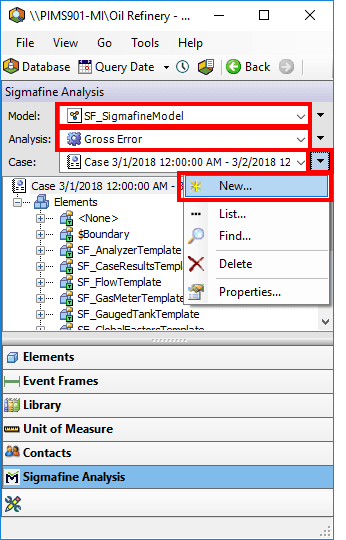
Click the Case
 menu button and select New.
The new Case is added to the Analysis list.
From the Analysis list, select the new case.
The settings / parameters for the new Case display under the General tab in the System Explorer window.
On the General tab, change the new case's Start time and End time as needed.
On the SF Analysis Toolbar, select the Model for which you are creating the analysis.
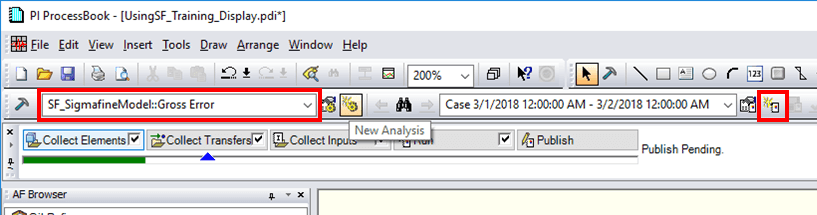
On the SF Analysis Toolbar, click the New Case button to open the Case Properties window.
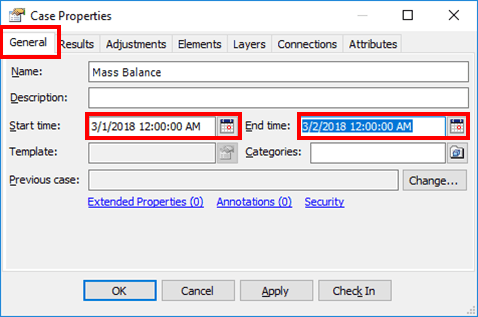
On the General tab, change the new case's Start time and End time as needed.
Click Apply and then OK to save your changes and close the Case Properties window.
In the System Explorer or Modeler window, use the Case Runner buttons to execute the analysis.

 System Explorer
- Collect Elements - Establishes the elements to include in a case, based on their inclusion in any of the active layers of the case / display.
- Collect Transfers - Locates any transfers to include in a case, based on the transfers' time and whether it is connected to any elements in the case.
- Collect Inputs - Collect all inputs for the analysis to use in running the case.
- Run - Execute the selected General Gross Error Analysis rules on the collected inputs. Results are stored within the Case and are displayed on the Log Output tab. Notable Gross Errors also appear on the Log Output tab.
- Publish - Writes results for Attributes defined as output attributes.
Review the Log tab of the Case to see the results from the Gross Error analysis.
There are two severity messages that can occur; warnings and errors. These are noted in the “Severity” column of the Log (or Log Output) tab.
Note:
The messages on the log tab are only visible during the initial session running the case. The log messages are stored in a temporary file located in the your temporary directory under the name:
[Model]_[Model Analysis]_log.csvwhere:
[Model]= the name of the Model where the analysis resides[Model Analysis]= the name of the analysisTo save this log permanently, right-click on the Log (or Log Output) tab and select Save Log.